Chord Analyser is free with no ads, and the free version is a working tool rather than a demonstration. A single one-off purchase unlocks the rest; there is no subscription and nothing expires.
This page is the list, and where you will see the padlocks.
What the free version does
- The whole fretboard page: press notes, read the name, step through the readings, read the degrees and the staff, hear it back.
- The whole chord dictionary: pick any root and any of the app’s chord qualities, and get every position it can find.
- The chord builder, so you can reach any chord name the app knows.
- “Chord settings”: which chord sizes to consider, quartal chords, slash naming.
- The piano page, inversions included.
- Guitar and Tenor Banjo.
- “Fixed view”.
- One chord chart, with the whole editor: subdivisions, bar lines, repeats, time and key signatures, playback, auto voicing.
- PDF export of that chart.
None of that is a trial. There is no time limit and no counter.
What the purchase adds
- Eight more instruments: 5-string Banjo, Ukulele, 7-string Guitar, Violin, Viola, Mandolin, 5-string Mandolin and Balalaïka.
- Open tunings.
- The left-handed fretboard.
- Bookmarks, and the manager that goes with them.
- “Combo”, the keyboard and fretboard on one screen.
- Chord recognition through the microphone, on Android.
- MIDI input, on the instrument pages and in the chart editor.
- As many chord charts as you like, in a library, with rename, duplicate, reorder, import and export.
- Transposing a chart.
Where the padlocks are
The app does not hide the locked features, it shows them locked. That is deliberate: you can see what is there before deciding.
On the home screen
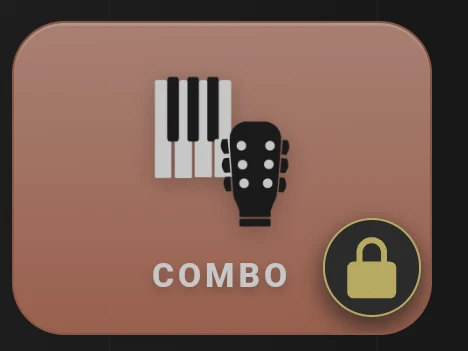
“Combo” carries a padlock. Everything else on that screen is open.
In the instrument picker
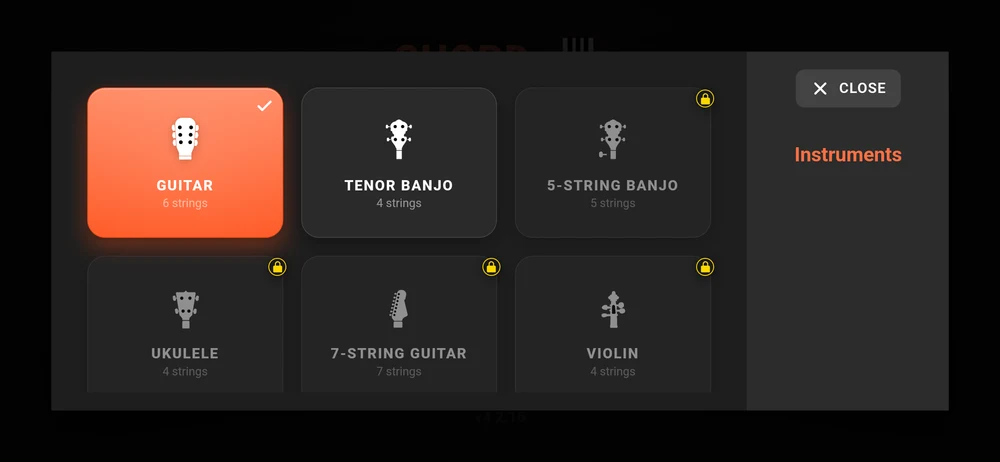
Guitar and Tenor Banjo are open. The other eight are shown, greyed, with a padlock in the corner, so you can see the string counts before you decide whether you want them.
In the menu
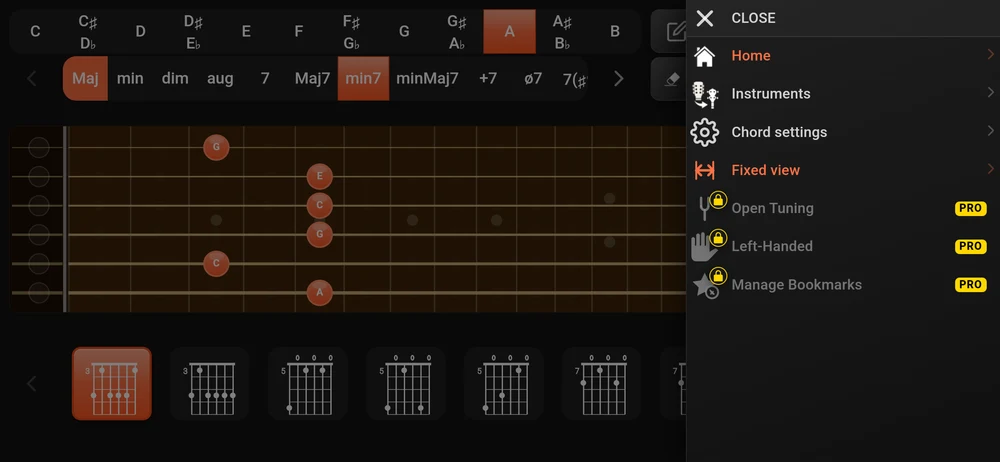
“Open Tuning”, “Left-Handed” and “Manage Bookmarks” are greyed with a padlock and a “PRO” tag. “Home”, “Instruments”, “Chord settings” and “Fixed view” are yours.
In the icon row above, the star, the bookmark list and the microphone carry a small padlock too.
In the chord chart editor
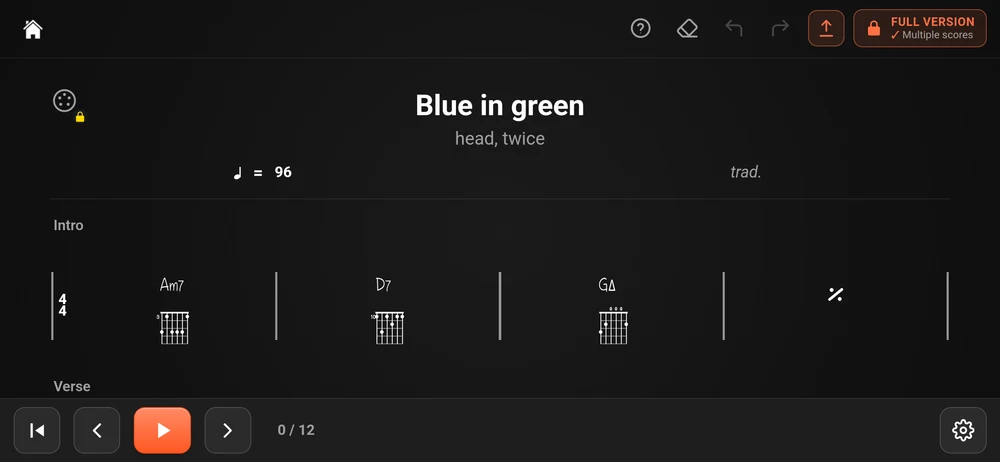
Two marks here. The MIDI socket at the top left has a padlock, and the toolbar carries a “Full version” button naming what it buys: “Multiple scores”.
That button is the honest statement of the free chart limit. You get one chart, and it is a real one: everything in Chord charts works on it, and it exports to PDF. What you do not get is a second one, so a new song means clearing the old chart or exporting it first.
The eraser in the toolbar is how you start a new song in the free version. Export the PDF, then clear the chart. The PDF is the copy you keep.
In Properties
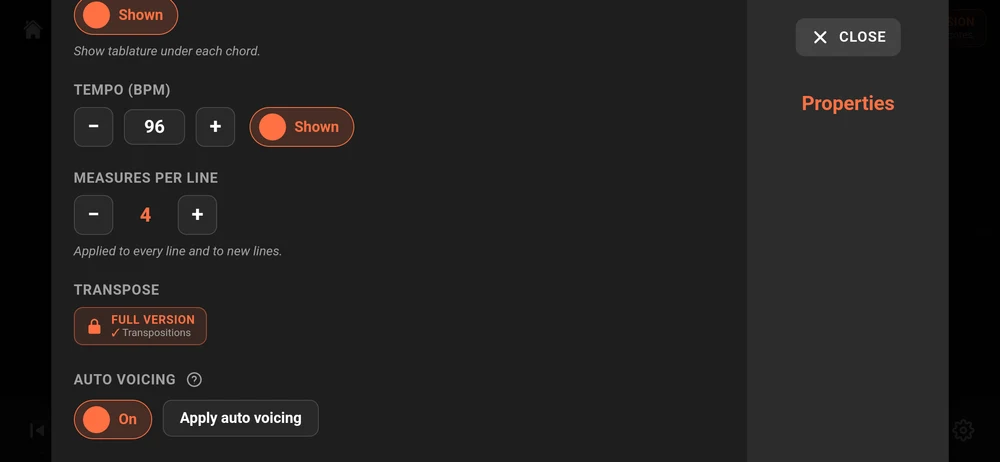
“Transpose” is replaced by the same “Full version” button, this time naming “Transpositions”. The tuning button at the top of the dialog is padlocked too, for the same reason “Open Tuning” is.
Everything else in that dialog works: playback instrument, tablature, tempo, measures per line, and “Auto voicing” with its “Apply auto voicing”.
In Export

“PDF” is free. “Export”, which writes the editable .sheet file, is not.
Buying it
Any padlock opens the purchase dialog, and so does any “Full version” button.
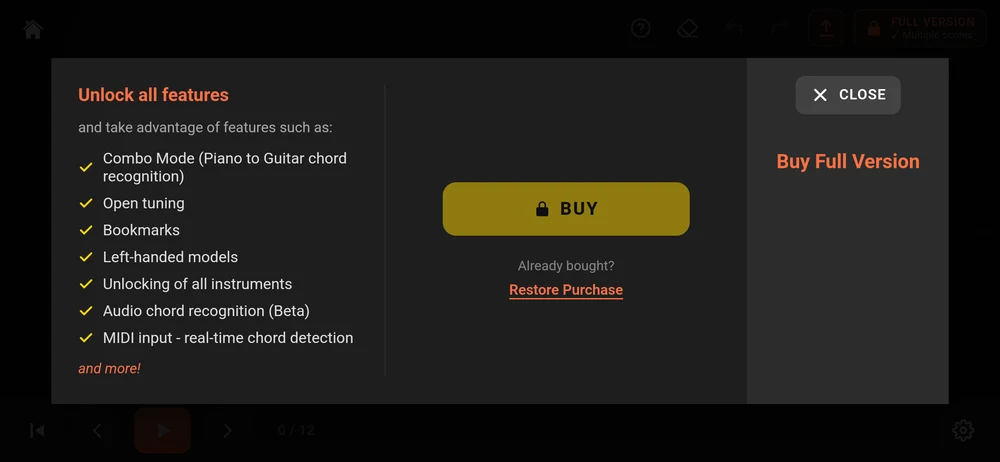
On the left, what you are buying. On the right, the price, which comes from your store rather than from the app, with “One-time payment” under it and the same figure on the “BUY” button.
“Restore Purchase” underneath is for the case you have paid before: a new phone, or a reinstall. Tap it and the app asks the store again. You do not pay twice.
Every so often the home screen carries a special offer badge, and the dialog opens on a reduced price instead. The app counts the days you have used it and offers this on roughly one day in seven. Nothing expires if you ignore it, and the full purchase is the same purchase either way.
Where to go next
Back to What Chord Analyser is for for the overview, or straight into Naming a chord you are playing.