Tapping notes in works, but you are already holding the instrument. Both of the routes below are part of the full version.
Chord recognition through the microphone
The microphone icon in the icon row on a fretboard or keyboard page. It is labelled “Chord AI” in the menu.
Tap it and a setup card appears before anything starts listening.
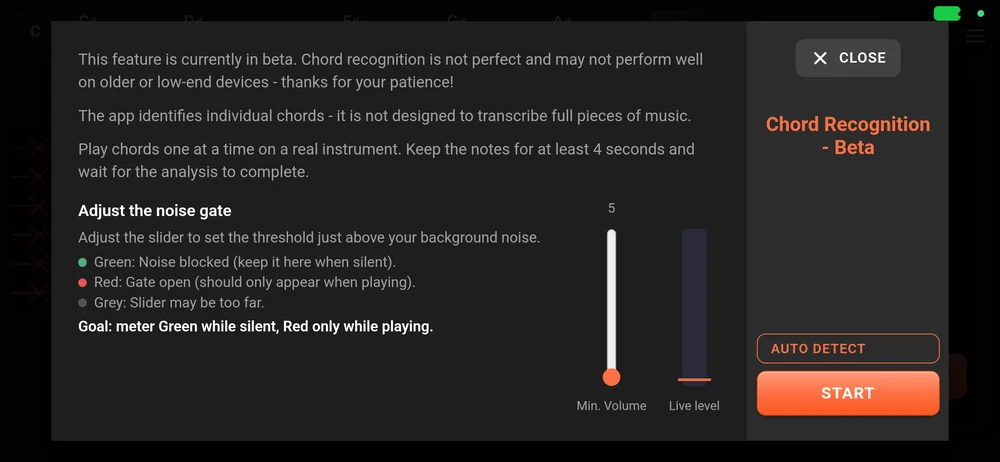
Read it. The app is telling you the truth about a feature in beta, and the three lines at the top are the ones that decide whether this works for you:
- it is beta, and it will struggle on an older phone;
- it identifies one chord at a time. It is not a transcriber and will not follow a record;
- play the chord and hold it for at least four seconds, then wait.
Setting the noise gate
The gate is there so the app is not analysing the fridge. You are setting a volume below which it ignores everything.
“Min. Volume” is the slider. “Live level” beside it is a meter showing what the microphone hears right now, coloured against your threshold:
| Colour | Meaning |
|---|---|
| Green | Below the gate. What you want while nobody is playing |
| Red | Gate open. What you want only while you are playing |
| Grey | Well below the gate. The slider may be too far up |
The goal is stated on the card: “Goal: meter Green while silent, Red only while playing.” Sit in the room you will actually use, say nothing, and move the slider up until the meter goes green. Then play, and check it goes red.
“Auto detect” does that for you: it listens to the room for a moment and puts the slider somewhere sensible. Start there and adjust by hand if the room is noisy.
Tap “Start” and the app begins listening. Play a chord, hold it, and the name appears where it would have appeared if you had tapped the notes in, with the fretboard filled in on the position it thinks you are holding.
Tap the microphone icon again to stop. It is a toggle, and it is worth turning off when you are done: nothing good comes of leaving a microphone open.
Chord recognition is Android only. The listening part is a native piece of the Android build, so the icon is not there on iPhone.
MIDI
If you have a MIDI keyboard and an interface, the app will take chords from it directly.
The five-pin socket icon at the top left of the panel is both the indicator and the way in. It lights up when MIDI arrives. Tap it for the wiring.
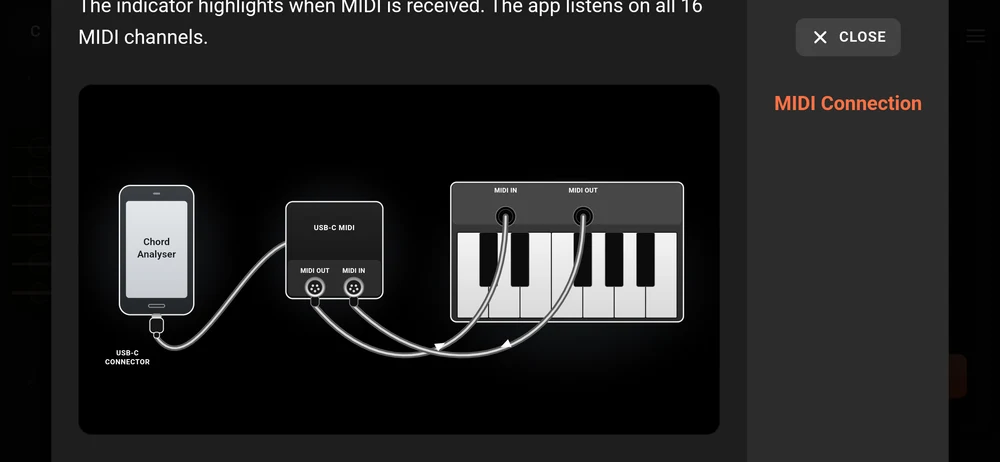
The dialog says the thing everyone gets wrong once, so it is worth repeating: the keyboard’s MIDI OUT goes to the interface’s MIDI IN to play notes into the app, and the interface’s MIDI OUT goes to the keyboard’s MIDI IN to send chords back out on playback. The app listens on all sixteen channels, so you do not have to match one.
Play a chord on the keyboard and it is named on screen, exactly as if you had tapped it. Play it on the “Piano” page and the keys you actually pressed are the keys that light up, so the voicing you played is the voicing you see.
MIDI in the chord chart editor
The same socket icon sits at the top left of the chord chart editor, and there it does something different: it turns the editor into a recorder.
With it on, tapping a measure selects the chord slot instead of opening the editor. Play a chord on the keyboard and it is written into that slot, with the exact notes you played kept as its voicing, and the selection moves on to the next slot. Play the song through slowly and the chart writes itself.
Starting playback turns it off again, so you cannot record over what you are listening to.
Where to go next
Chord charts for the editor that MIDI mode writes into.
The free version and the full one if you are wondering which of this you have.