A phone gets dropped off the front of a stage. It gets stolen at a service station. It gets replaced because the battery no longer lasts a set. Whatever happens to it, the evening you spent trimming intros by ear, and the running order you settled on after three rehearsals, live nowhere else.
Cloud backups are the copy that outlives the phone. They have nothing to do with playing a show, and they never get in the way of one.
Signing in
Everything on stage works without an account. Pads, live mode, count-ins, fades, chaining, lyrics, scores, two-source songs: all of it is free, and none of it asks who you are.
An account buys storage, not features.
Tap “Sign in” in the home screen header. Tapping ”☁ Save / Load” without an account takes you to the same place. You can use “Continue with Google”, or an email address and a password.
Creating the account gives you one credit for nothing, which is one set kept in the cloud. That is enough to watch the whole thing work before you decide whether you want more.
The Save / Load page
”☁ Save / Load” on the home screen is where all of this happens.
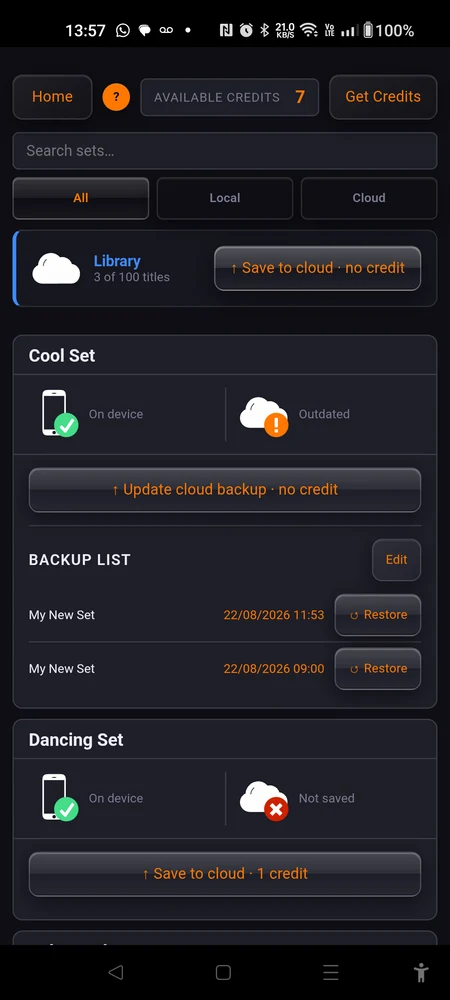
At the top, “Available Credits” and a number: how many credits you have left, and “Get Credits” if you want more. Below that a search field, and three filters:
- “All”, every set the app knows about, on this phone or in the cloud.
- “Local”, only the sets that have something waiting to be saved.
- “Cloud”, only the sets the cloud already knows about.
Then one card per set. Each card has two columns: a phone on the left, a cloud on the right, each with a word for where that set stands.
| Column | What it says |
|---|---|
| Phone | ”On device”, or “Not on device” for a set that only exists in the cloud |
| Cloud | ”Not saved”, “Up to date”, “Outdated”, or “Available in cloud” |
“Outdated” is the one to read. It means there is a backup, and you have changed the set since. “Available in cloud” is a set that is not on this phone at all, which is exactly what you see the first time you sign in on a new one.
What a credit is
One credit keeps one set in the cloud. That is the whole rule.
The cost is on the save button, because it is decided at the moment you press it:
- ”↑ Save to cloud · 1 credit” for a set that is not up there yet.
- ”↑ Update cloud backup · no credit” for one that already is.
So the first backup of a set spends a credit, and every backup of it after that is free, as often as you like, forever. Save after every rehearsal if you want to. It costs nothing.
Credits also come back. Tap “Edit” in a set’s backup list, then “Delete Set from cloud”, and that credit returns to your balance immediately, ready for another set.
If your plan covers fewer sets than you have in the cloud, the most recently saved ones stay reachable and the rest are locked until you upgrade or delete one. Nothing is deleted for you, and nothing on the phone stops playing.
The library has its own zone
The library sits above the sets, in its own block outside the list. It ignores the search and the filters, and its button reads ”↑ Save to cloud · no credit”.
It is free, and it is not optional.
A pad that plays a library title holds no audio of its own. It holds a reference to the title. So backing up the set that contains that pad uploads no recording at all: the audio only reaches the cloud through the library backup.
Back up the library as well as your sets. A set full of library pads, saved on its own, restores onto a new phone as a set of pads with nothing to play.
How many titles you can back up depends on your plan: 15 on the free one, then 30, 100 or 500. Go over the limit and the library backup waits until you are back under it, or until you upgrade. Everything already on the phone keeps playing meanwhile.
What actually goes up
For every song in the set: the audio file, the lyrics, and the PDF score, whether that is a scan of a part or a chart you built with Chord Analyser. A song with two sources uploads both of its files.
Identical files are stored once. The same score used by four songs is one upload, and re-saving a set does not send up anything that is already there.
One thing is never uploaded: the assembled mix of a two-source song. That mix is built from the two source files, so the phone can build it again from them. It is why a restored set may sit in a preparing state for a moment before its two-source pads are playable.
If the audio file of a song has gone missing from the phone, the set is still backed up, without it, and the app tells you which song. Restore that file or re-import it, then save again.
Version history
Every save pushes the version that was in the cloud into a history rather than overwriting it. A set keeps up to 10 previous versions plus its current one. The library keeps 5, listed under “PREVIOUS VERSIONS”.
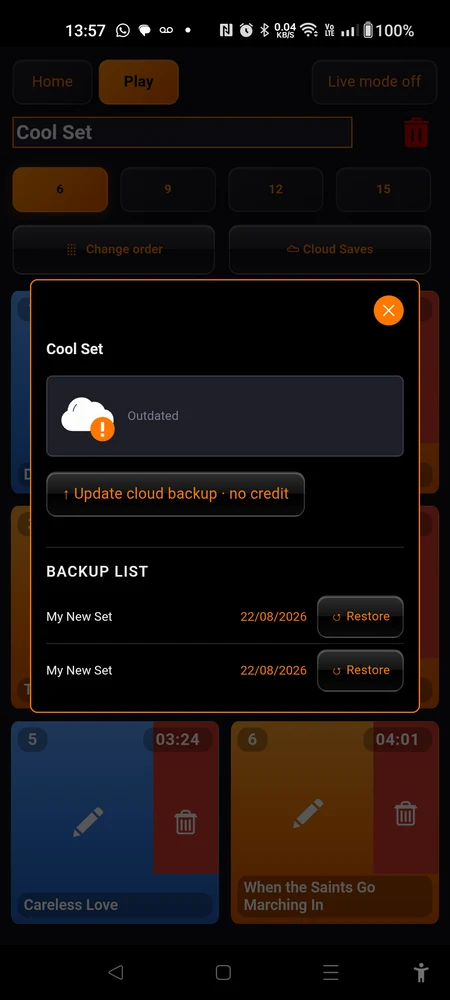
In the backup list, the current version is marked ”✓ Current” and its button reads ”↻ Reload”. Older ones read ”↺ Restore”.
Going back a version is an ordinary thing to do, not an emergency measure. You cut a song you now want back, you moved something and preferred it where it was, you tightened a fade too far. Restore last week’s version, look at what it had, carry on.
Getting a set back
Tap ”↺ Restore” or ”↻ Reload” on the version you want. What happens next depends on whether that set is already on this phone.
If it is, you get “Conflict Detected” and two ways out:
- “Overwrite Current” replaces what is on the phone with the cloud version. Your changes since that backup are gone.
- “Save as New Set” keeps the set you have and downloads the backup alongside it as a second set. When you are not sure which of the two is the good one, take this.
If the set is not on this phone, you get “Import Set” and “Load to device”, which is the plain case: a fresh phone, and your set arriving on it.
Either way the audio comes down first and the documents follow. A set becomes playable before its lyrics and its scores have landed, which is the right order on a night when you are short of time.
Restoring the library is a merge
This one behaves differently from a set, on purpose. Restoring the library only adds titles and refreshes the ones already there. It never removes anything.
A title you added since that backup stays exactly where it is. Ending up over your plan’s limit afterwards is allowed, and nothing that is already on the phone stops playing. You cannot roll the library back to a smaller state, and you cannot lose a title to a restore.
During a show
While live mode is on and a song is playing, the app starts no backup. Nothing touches the network mid-set. Live mode also hides the backup screens entirely, so there is nothing to tap by accident.
And put the phone in airplane mode before you go on anyway. Nothing about playing needs a signal.
Where to go next
What Stage Player is for covers why nothing ever streams, which is the other half of the same idea.
Two sources in one pad explains the assembled mix that backups deliberately leave behind.