You know the song. You mostly know the song. There is one verse you fumble every time, and a chord chart you would rather not squint at on a music stand in the dark.
A pad can carry either one for you. Turn it on, and when that pad plays the words or the score open by themselves and follow the music. You keep both hands on your instrument.
One pad, one document
In a pad’s settings there are two switches: “Lyrics:” and “PDF (chords, sheet):”. Turning one on turns the other off. A pad shows words or it shows a score, never both at once.
Flipping between them throws nothing away. Your lyrics stay saved, your PDF stays attached, and its crop and its markers stay with it. Only the choice of what to show changes.
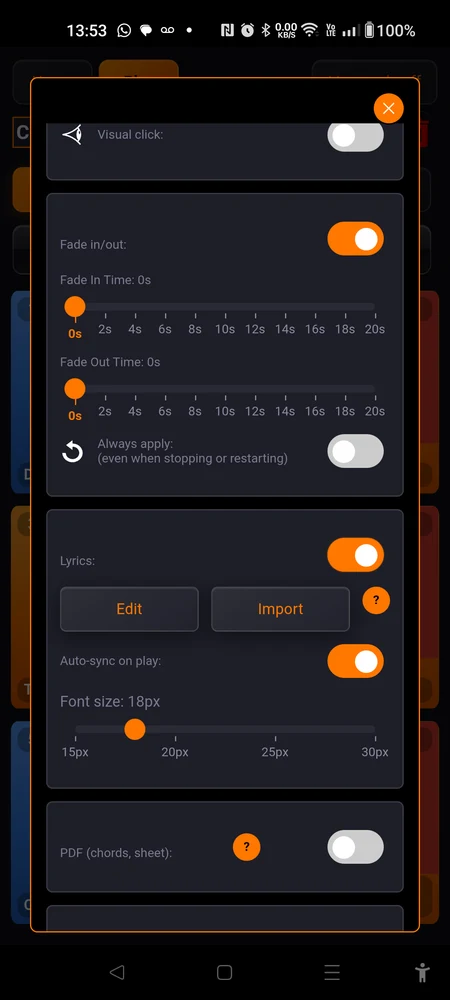
If the song comes from your shared library, a “Shared” badge sits on this panel. The words and the score belong to the title, so every set that uses it gets them, and every set follows when you change them.
Text lyrics
Turning it on
Turn “Lyrics:” on and three buttons appear.
- “Edit” opens the editor. That is where you type, and where you place the marks.
- “Import” takes a
.txtor.mdfile you already have on the phone. It replaces whatever was there, so import first and edit afterwards. - ”?” is a short reminder of the same thing.
Below them, “Auto-sync on play:” decides whether the stage view starts following the song on its own or waits for you to switch it on. “Font size: {n}px” sets how big the words are on stage, anywhere from 15 to 30 px. Once there is text saved, ”● Lyrics saved” appears at the bottom of the panel.
The editor
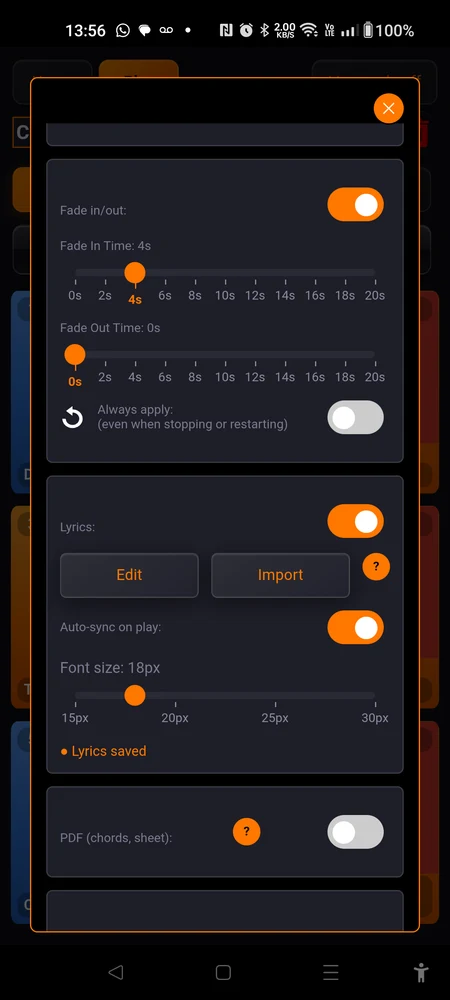
The middle of the screen is a plain text area. Type, paste, or import. Nothing else is required: text with no markup and no marks already works on stage.
At the bottom (in landscape, in a column on the left) there is a play button, a button showing a running time, and a slider to move around the track. The editor plays the song itself so you can place your marks against what you hear.
An orange dot next to “Lyrics” means you have unsaved changes. “Save” keeps them. Closing with the dot still there asks first: “Unsaved changes”, then “Cancel” or “Discard”.
Placing a mark
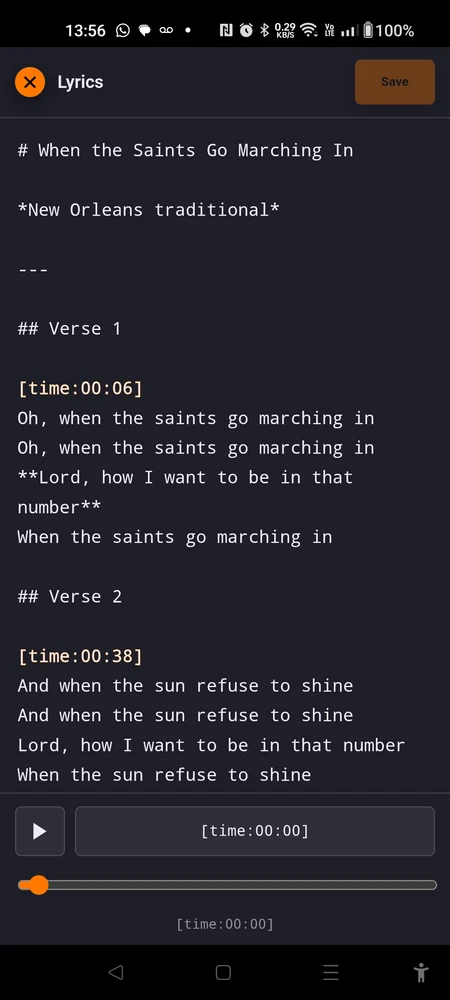
Put the cursor where you want the mark, usually at the start of a line. Tap play, listen, and when the song reaches that line tap the button showing the running time. It writes the time into your text, right at the cursor, and leaves the cursor after it.
So the button that reads [time:00:41] is not a label. It is the mark it is about to
insert.
The comfortable way to work: type all the words at home, then play the track once and place a mark at the top of each section as it arrives. Miss one and drag the slider back a few seconds.
What a mark looks like
A mark is [time:MM:SS]. Two digits, a colon, two digits. The editor paints real
marks orange, so a mark that stays white is not a mark.
[time:1:30]is not recognised. It is ordinary text, and it will sit there on stage in the middle of your lyrics, in front of an audience. Write[time:01:30].
Real marks are invisible on stage. They take no space and print nothing.
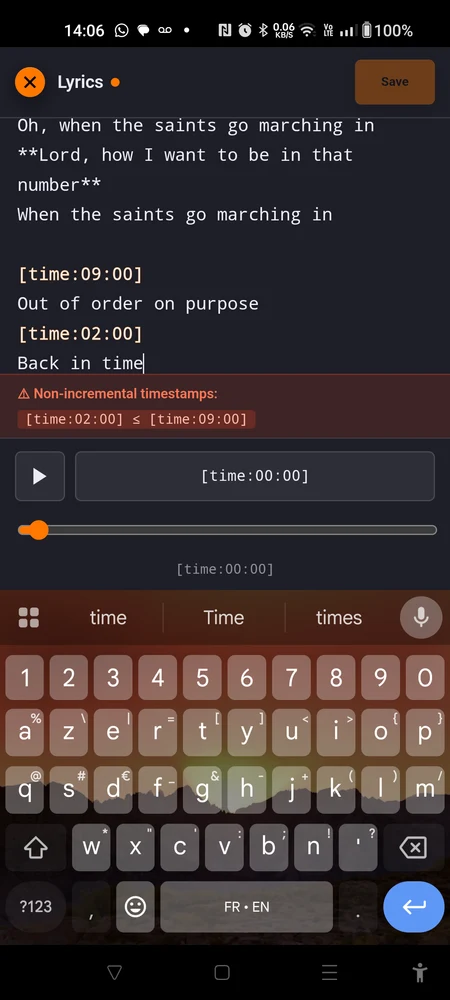
Marks must go forward. Two marks at the same time count as wrong too, because they tell the app to be in two places at one instant. When the order is broken you get ”⚠ Non-incremental timestamps:” with the offending pair named, and “Save” stays out of reach until you fix it.
Times are counted from the moment the song starts playing, not from the start of the file. If the pad trims its intro,
[time:00:00]is the trimmed start. Move those bounds later and every mark shifts by the same amount.
How the scrolling actually works
This is the part nobody guesses, and it changes how many marks you bother to place.
With no marks at all, the whole text scrolls evenly from the top to the bottom over the length of the song. Type your lyrics, save, and it already works. On a song whose words are spread fairly evenly, that alone can be enough.
A mark is an anchor. It pins one line to one moment. Between two marks the text moves smoothly so that the line you are on sits in the middle of the screen when its moment arrives.
Which is why you mark section starts, not lines. A mark at the top of each verse and each chorus is four or five marks for a whole song, and everything in between takes care of itself. Marking every line is work you do not need to do, and it makes the scroll twitchy.
Before the first mark, the text eases gently from the top down towards it.
After the last mark, the text stops moving. Put a mark on your last section, or the words sit still from the final mark to the end of the song.
On stage
The view opens by itself when the song starts. It waits for the count-in to finish, so it never covers the visual countdown.
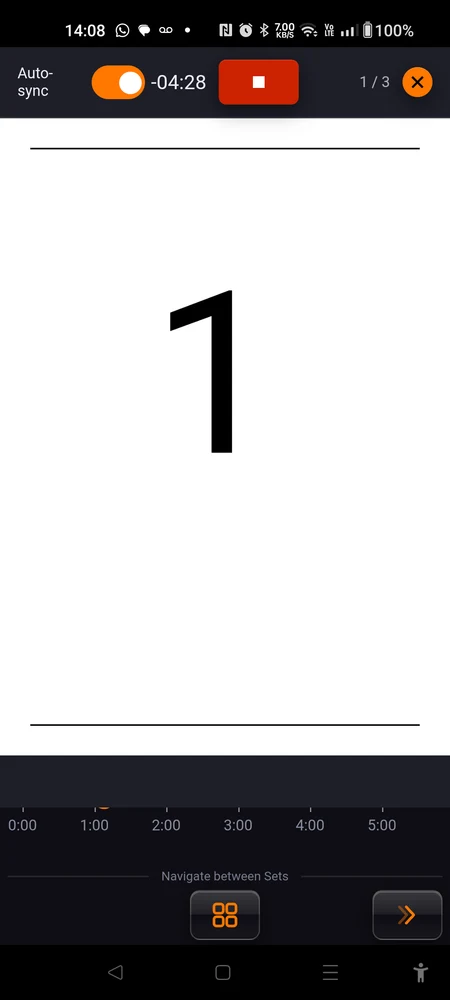
Across the top: an “Auto-sync” switch, the time remaining counting down, a red stop button and the round close button.
- Stop stops the song and closes the view.
- Close leaves the song playing. If you want the words back, a button appears next to the set’s name: “Lyrics” in portrait, “Display Lyrics” in landscape.
- When the song stops on its own, the view closes on its own.
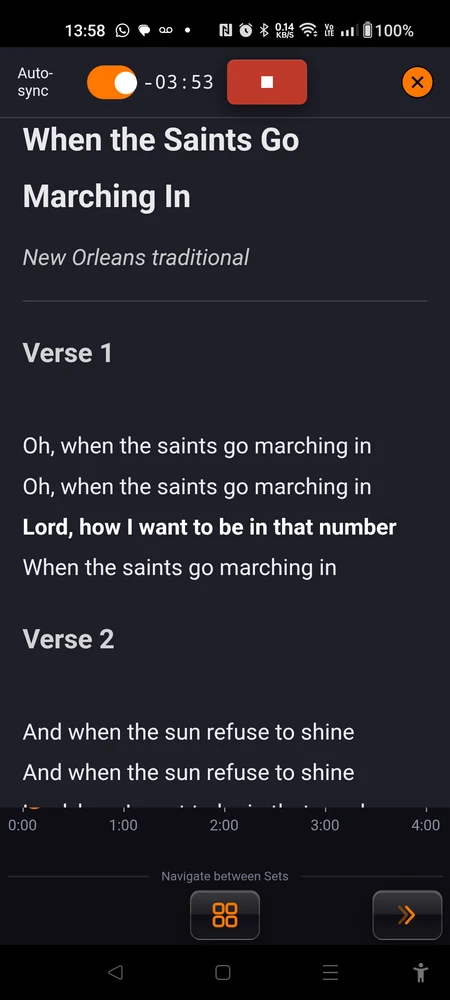
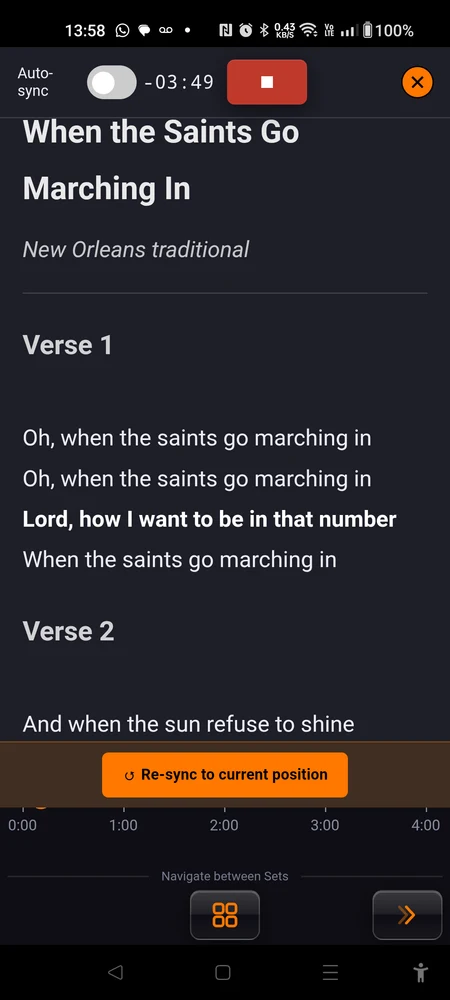
Drag the text with your finger and you take over. Auto-sync switches itself off and the text stays exactly where you put it, which is what you want when you need to check the last chorus while the second verse is playing.
”↺ Re-sync to current position” appears at the bottom. Tap it and the view jumps back to where the song actually is and starts following again. The “Auto-sync” switch does the same job.
In live mode the view is the whole screen. Out of live mode it stops short of the app’s own controls, leaving the bottom strip visible in portrait and the left column in landscape, so you can still reach the rest of the set.
Markdown, only if you want it
Plain text works perfectly well. Type the words, save, done. Your line breaks are kept exactly as you typed them, so a verse looks like a verse without any tricks.
Markdown is just a habit of typing one or two punctuation marks to mean “this is a heading” or “make this bold”. It was invented so that a note stays readable whether or not anything is dressing it up. If you have never used it, here is the whole of what the stage view understands.
| What you type | What you get |
|---|---|
# Long Way Home | the biggest heading |
## Chorus | a medium heading |
### capo 2 | a small heading |
**big finish** | bold |
*quietly* | italic |
- watch the drummer | a bullet point |
1. first time only | a numbered point |
--- | a horizontal line across the page |
> wait for the nod | a quote, shown with an orange bar down its left side |
That last one is worth knowing. The orange bar makes a line jump out of a page of lyrics, which makes it the right place for a note to yourself rather than something you sing.
Only what is in that table is styled for the stage. Tables, links and pictures are not, so do not build a page around them.
If a line comes out looking odd, it is almost always a
#,-or*at the start of the line doing its job. Reword the line and it goes back to normal.
One song, put together
# Long Way Home

[time:00:00]
> Guitar count of four. Come in on the second bar.

## Verse 1
[time:00:11]
I left the house before the sun came up
Nothing in my pockets but a folded map
Every road out here goes the same way twice

## Chorus
[time:00:48]
It's a long way home
**Harmony from here**
It's a long way home tonight

## Verse 2
[time:01:22]
Somebody told me there was work downriver
Somebody told me a lot of things

## Chorus
[time:02:04]
It's a long way home

---

*repeat and out*
Four marks, one per section. Everything between them moves by itself, the marks are invisible on stage, and the note about the guitar count sits behind an orange bar where you cannot miss it.
PDF scores
For chord charts, sheet music, or anything you already have as a page.
Attaching the file
Turn “PDF (chords, sheet):” on. It says “No PDF attached yet.” and offers “Import”. Pick the file off the phone.
The limit is 20 MB. Anything bigger is refused and told to you, and nothing changes. A photographed scan can easily be over that, in which case export or print a smaller version.
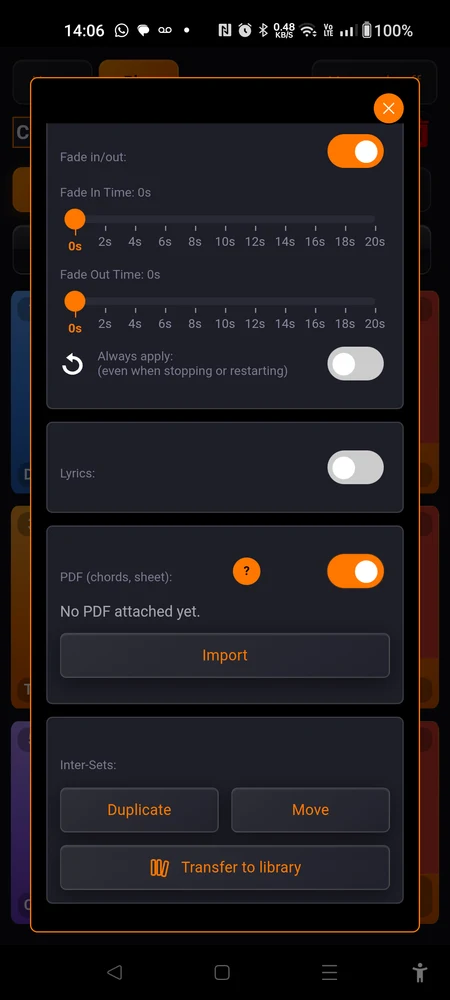
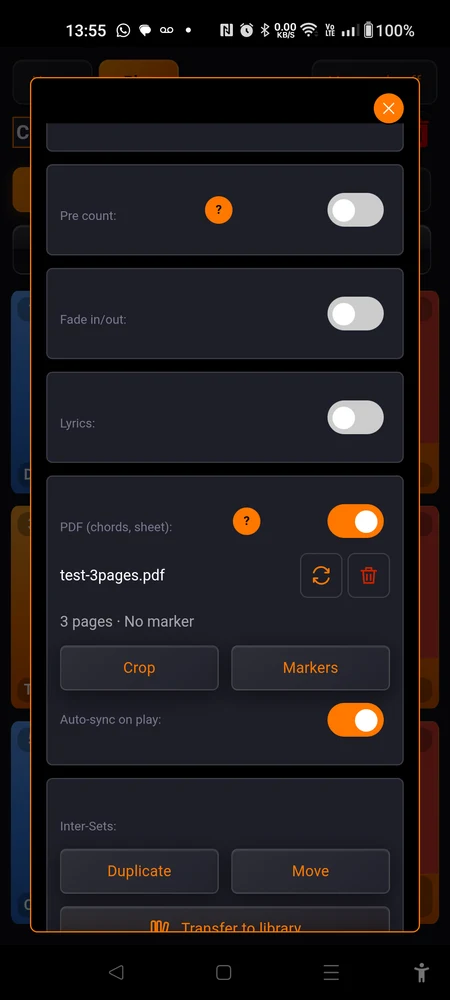
Once it is in, you see the filename and a line summarising it, such as “3 pages · No marker”, growing to “3 pages · 4 markers · cropped · rotated 90°” as you work.
Two small icons sit on the filename line: circular arrows to “Replace” the file, and a bin to “Delete” it. Delete asks first, with “Remove the score?”.
Below that, the two buttons that matter, “Crop” and “Markers”, and an “Auto-sync on play:” switch.
Replacing the file wipes the crop, the rotation and every marker. They describe pages that no longer exist, so the app clears them rather than leave you with turns landing in the wrong place. Get the export right first, place the markers second.
Crop and rotate
“Crop” shows a whole page with a draggable edge on each side. Pull the edges in and the margins outside them dim: what is dimmed is what gets trimmed. The hint says it plainly, “Drag the edges to trim the margins. Applies to every page.”
One crop for the whole document, so step through the pages with the arrows in the header and set it on the page that needs the most room. The trim cannot swallow the page entirely; there is a floor at a twentieth of it.
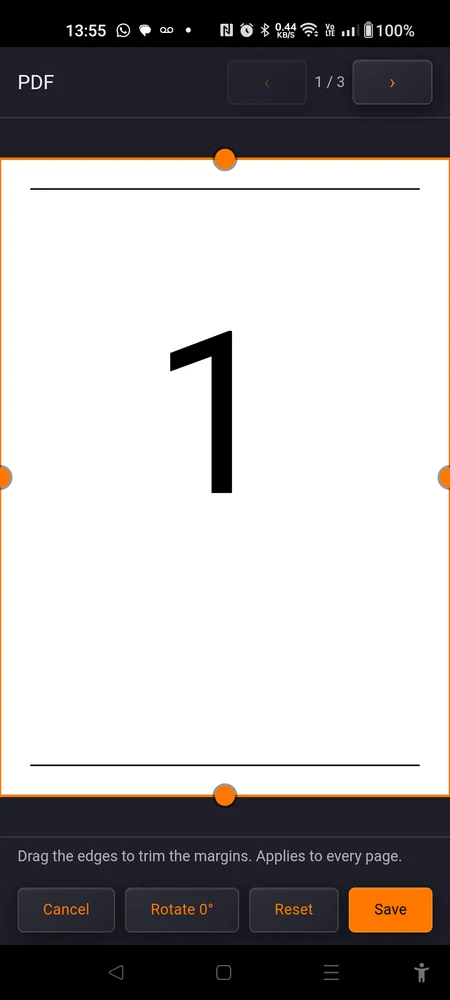
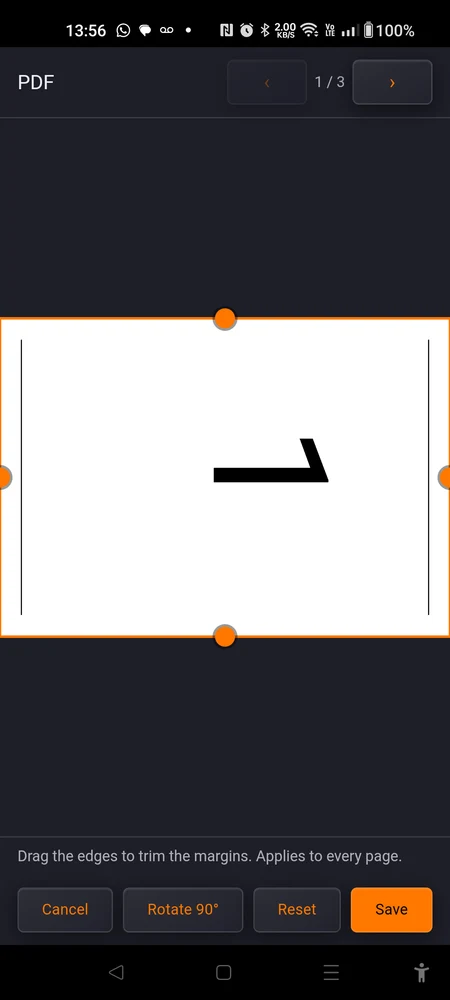
“Rotate {n}°” turns the page a quarter at a time, and the number on the button tells you where you are. Rotating puts the crop back to the full page, because edges you trimmed on an upright page trim the wrong sides once it is on its side. So rotate first, then crop.
“Reset” puts both back to nothing. “Save” keeps them, “Cancel” drops them.
None of this touches your file. The crop and the rotation are settings on the song, applied when the page is drawn, so the original PDF is left exactly as it was.
Markers
A marker says one thing: at this moment, be on this page, at this height.
The workflow is the same idea as a lyrics mark, done with your eyes instead of a cursor. Tap “Markers”, then:
- Play the track with the ▶ button.
- When you hear a place you want to be reading, scroll the page so that spot is in the middle of the view.
- Tap ”+ Add marker” (”+ Add” in landscape).
It stamps the time you are at, the page you are looking at, and the height at the centre of the view.
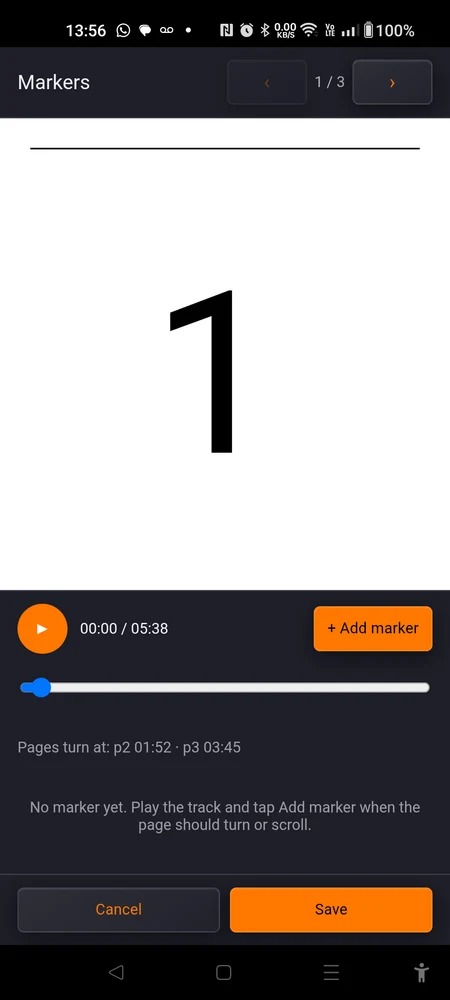
Placed markers are drawn on the page as a line with a small tag on it, numbered and timed, like “2 · 01:12”. Drag that tag up or down to move the marker on the page. The line itself is not draggable, so you can still scroll the score with a finger anywhere else.
Each marker also gets a row in the list:
| What you see | What it does |
|---|---|
the time, 01:12 | tap it to play from there |
| ”⤓“ | moves this marker to the current playback position |
| ”‹ 2 ›“ | steps the marker’s page down or up |
| a percentage | the height on the page, for reference |
| ”✕“ | deletes the marker |
The ”⤓” button is the one to remember. Rather than aiming for a perfect tap, drop the marker roughly, then play up to the exact bar and tap ”⤓” to move it there.
“Pages turn at:” shows the times each page will actually appear, worked out from your markers. Read that line before you trust the score on stage. A turn is the one thing you cannot fix mid-song, and one that lands halfway through a phrase is a turn you will be fighting.
Markers must advance in time, and two at the same instant count as broken. You get ”⚠ Markers must advance in time:” with the pair named, and “Save” greys out. Two taps at the same second replace each other rather than stack up, and the app says so: “Marker at 01:12 replaced”.
Leaving the editor stops the track, so you land back in the set with nothing playing.
Marker times are counted from the moment the song starts playing, exactly like lyric marks. Retrim the pad’s start and every marker shifts with it.
What markers do on stage
Think of the whole document as one long ribbon of paper: page 1, then page 2, then page 3. The song walks down that ribbon at a steady pace, and a page turns when the ribbon crosses a join.
Markers are pins in that ribbon. Between two pins the pace is whatever it has to be to arrive at the next pin on time. One mechanism, three behaviours:
- No markers at all. The pages spread evenly over the song, the same idea as unmarked lyrics. Two pages, three minutes, and the turn lands at 1:30.
- Two markers on the same page. The view scrolls down that page between them.
- Two markers on different pages. The page turns at the moment the ribbon crosses the join, somewhere between the two.
A worked example. Three pages, a three minute song, and a single marker: at 1:00, be halfway down page 2.
- Getting there covers all of page 1 and half of page 2, so one and a half pages in sixty seconds.
- Page 1 on its own is two thirds of that distance, which takes forty seconds. Page 2 appears at 0:40.
- After the marker there is a page and a half left and two minutes to cover it. Page 3 appears at 1:40, and its bottom arrives as the song ends.
Which is exactly what “Pages turn at:” reports for that marker:
p2 00:40 · p3 01:40.
Two things fall out of this that are worth knowing:
- You never need a marker at the end. The song always finishes at the bottom of the last page.
- A marker may send you backwards, so a repeat works. Mark the head of the section again, later in the song, and the score scrolls back up to it.
A page that fits entirely on the screen has nothing to scroll, so on a chart like that the only thing you ever see is the turns. Same arithmetic, nothing special to set.
On stage
Deliberately the same view as the lyrics, so knowing one is knowing both. An “Auto-sync” switch, the countdown, stop and close, plus a page badge on the right reading something like “2 / 4”.
Drag the score and you take over: auto-sync goes off and the page stays put. ”↺ Re-sync to current position” hands control back. In landscape with live mode on, where there is no height to spare for a banner, that control shrinks to a single ”↺” beside the switch.
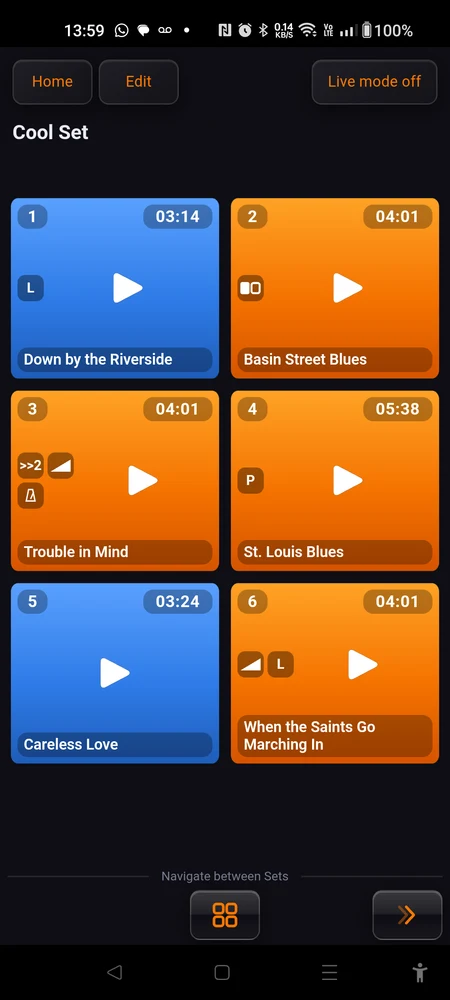
The pages are drawn in the background when you open the set, so a turn never waits on the phone. If you attach a score minutes before you go on, open the set once and give it a moment to settle before the first song.
If you still have to make the chart
This page is about displaying a score. Building one is a different job, and there is a free app for it.
Chord Analyser lays out a full chord chart on the phone, sections, repeats and all, and exports a clean printable PDF. Export it there, import it here, and the same chart that went to your bandmates is the one turning its own pages on stage.
Where to go next
Getting started covers the ground under all of this: one set, two pads, ten minutes.
Good habits is the one worth reading before a real gig. Placing marks the week before and checking your page turns once, at home, is exactly the kind of thing it is about.